Showing posts with label D2L. Show all posts

Thursday, October 20, 2016

D2L Tip - Previewing a Student's Grades


From Thommen's Timely Technology Tip

After setting up or altering a gradebook, instructors often wish to view the grade listing from the student’s perspective. D2L provides this capability. 

1. Click the Grades tab. 

2. Click the Enter Grades link in the Grades Area box (upper left). A list of the student names as hot links appears in the User List window. 

3. Click on the name of the student you want to preview, and the Grade User summary screen will appear. 

4. Click on the Preview link in the upper left portion of the page. A new window will open displaying a summary of the student’s grade information. This window provides an accurate representation of what the students see when they review their grades.

For more D2L tips, contact Meg Elias at clarkm1@star.lcc.edu or stop by the CTE in TLC 324 during our open hours.

Friday, October 7, 2016

D2L Tip - Hiding Your Online Status

When students and instructors access the Classlist in D2L, a green circle to the right of a user's name indicates that the user is currently online.  If you wish to appear offline, you can hide that status in your account settings.

The account settings are found under your profile.


Log in to D2L, and click the down arrow beside your name in the top right corner.  Click Account Settings, and scroll down until you see the section, Signing In.

The choices under the Signing In menu are Appear online and Always appear offline.


Click Always appear offline.  Then click Save and Close.  your status will be hidden from all users in all courses.  You can elect to change your status back to Always appear online at any time.

For more D2L tips, contact Meg Elias at clarkm1@star.lcc.edu or stop by the CTE in TLC 324 during our open hours.

Tuesday, March 1, 2016

T5 - Customizing Widget Backgrounds in D2L

D2L has added a new feature to the Customize Widget Style dialog window.

About half-way down the dialog listing, there is a Widget Background section.  Its only control is a check box with the word Transparent next to it.

Checking this box makes the Widget Background transparent and greatly improves the appearance of widget-based banners and other items.  Previously, banner widgets were surrounded by a white border, which detracted from their appearance.  Setting the widget background to transparent eliminates the border and greatly improves the appearance of banners.

If you'd like to talk more about customizing your D2L site, visit the CTE or contact John Thommen at thommej@star.lcc.edu.

Thursday, February 11, 2016

Teaching Tip - Video Feedback for Students

For the last few semesters, I have required my Composition II students to complete a public writing project. Since their final work is published on the web, I couldn’t provide them with the type of feedback that I normally do using Microsoft Word: in-text comments throughout their essay and some narrative comments at the end. 

Since I still want to point out specific features within the text as well as provide some summary comments, I use Video Feedback—and I actually receive positive reviews from the students about the videos. The process is relatively quick and easy (once I got the hang of the technology), and it can be used by any instructor who wants to provide some personalized feedback on their students’ work. It doesn’t just have to be a writing assignment; it would work well for any type of digital submission required of students. 

Using Screen Capture, I use the mouse to indicate specific areas within the essay I want to discuss with my students. I simply move my cursor arrow around the general area, or highlight specific parts of the text while I tell the student what I want to say about his/her work. Then, I am able to move my cursor to the next section I wish to discuss. 


To create Video Feedback, you will need a computer equipped with a microphone and a simple Screen Capture program. I used Jing, a program available for FREE download. Now, Kaltura, an easy Screen Capture program, is already available within Desire2Learn (D2L). The advantage of Kaltura is that the video files are easily saved within the “My Media” area within D2L, which makes sharing those videos with students even simpler. As for a microphone, I recommend one of the external headset microphones; they make for much better sound quality. 

 Try these basic steps for giving Video Feedback: 
  1. Read and review student’s work first, taking notes on what you wish to say. Organize your thoughts a bit before you begin recording. 
  2. Call up the student’s work on your computer screen, then open Jing or Kaltura whichever you prefer. Set the screen capture area to record just the student’s work, not your entire computer screen. 
  3. Begin recording, making sure to talk slowly and clearly. Begin with some overall thoughts, especially something positive. Then spend time pointing out interesting ideas or possible areas for improvement. 
  4. If you need to discuss grammar/mechanics errors that overwhelm a student’s writing, do so in a general statement about the problem. Don’t try to point out each and every error; instead, choose one or two examples that are indicative of the patterns you are observing. 
  5. Keep the videos under five minutes. 
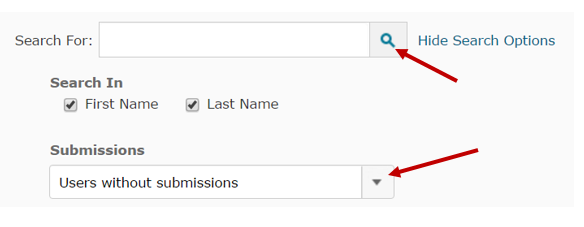
  6. Upload the videos to each student using a D2L dropbox. If the students did not submit the work to a dropbox, create one in D2L anyway. In the Folder Submissions view, select Users without submissions then click on the search icon; you will then be able to see all of the students, enter their grades, and upload the Video Feedback for each one. 

If you would like assistance getting started on providing Video Feedback to your students, email Leslie Johnson at farrisl@star.lcc.edu or stop by the CTE in TLC 324 during our open hours. 

Tuesday, February 10, 2015

Regrade in D2L More Efficiently

When fulfilling student email requests to regrade online tests, I open the test listing in a new browser tab, perform the regrade, then return to the tab containing the email to complete the transaction with the student.  Moving between tabs saves a great amount of time over clicking multiple links to traverse the system.
To open a link in a new tab quickly, hold down the Shift and Ctrl keys and then Click_the_link.  The link will open in a new tab within the browser.
For you Apple users Command+Shift+Click_the_link will achieve the same result.


For more information, visit us in the CTE or email John Thommen at thommej@lcc.edu.

Wednesday, February 4, 2015

D2L is Coming to East Lansing

From D2L Faculty User Group:

Just a reminder that the Call for Proposals is open, and we want to hear from you! D2L is coming to Lansing, MI, on March 26, 2015 for the Michigan Brightspace Ignite. Submit your proposal today to be a part of the Michigan Brightspace Ignite. Now is your chance to share your thoughts and ideas about all things technology and eLearning with like minded peers. Deadline is February 20, 2015

Date & Time: Thursday, March 26th, 2015 8:00 AM – 4:00 PM (Eastern Time) Location: Kellogg Hotel & Conference Center, 219 South Harrison Road, East Lansing, MI, 48824-1022