In planning my calendar each semester, I schedule time for in-class exam review. I find that even a short review session can relieve some of the anxiety students face come test time. In addition, it's a chance for me to sneak in a low-risk assessment before the "real thing." Instead of repeating my lecture material, I try to create activities that push the students to be active in their learning.
In cases where students need to master new terminology for an exam, I create custom Bingo cards at Print-Bingo.com. With 24 terms (plus the FREE center square), Print-Bingo will generate 10 unique cards in a downloadable .pdf file. For a large class, I either generate multiple sets or just print several copies of one set ... I'm okay with multiple winners. Students choose a card and they have 5 minutes to look over the terms and ask questions.
When we're ready to play, I read one definition at a time in random order, and the students have to cross-out the corresponding term on their Bingo cards. When a student gets BINGO, I give them the chance to drop one 2-point question on the exam. We play until roughly half the class wins.
For the students who struggle to match definitions to the terms, the game is a wake-up call. For me, it helps identify students who might need some extra help or even a referral to the Learning Commons. Yes, there's an element of chance involved in winning (which card you pick), but the risk and the reward are so small that students don't complain.
If you'd like to talk more about using games for test review, visit the CTE or contact Meg Elias at clarkm1@star.lcc.edu.
Showing posts with label Web Tools. Show all posts
Wednesday, February 17, 2016
Tuesday, October 6, 2015
Merlot II: An Open Education Repository
Merlot II offers a repository of materials that are contributed and reviewed by educators worldwide. The site is administered by The California State University, and has been collecting resources since 1997. This is a true open resource, with an active and generous following. Instructors can use the materials without logging in, but free membership includes the opportunity to review posted materials and keep a bookmarked collection of your own favorites.
To provide an example, I did a quick search with the term “business” and turned up a tutorial, “Guide to Financial Statements.” I can see from the resource summary that the material is highly rated and has been updated recently (June 2015). In addition to tutorials, the search returned case studies, videos, and animations, which can all be sorted by the date modified or highest rating.
Labels:
Teaching Tip,
Web Tools
Monday, September 21, 2015
Teaching Tip - Study Skills Videos
The purpose of LCC’s Operation 100% is for every student to reach their degree, certificate, or transfer goal. Unfortunately, many students don’t arrive in classes fully equipped to meet those goals. Educators have known for a long time that students who “know how to learn” and can self-regulate their learning activities are more successful; faculty can support students who lack such skills by helping them acquire those self-regulating behaviors (VanZile-Tamsen & Livingtson, 1999).
One simple way faculty can help students develop such self-regulating behaviors is directing them to existing videos explaining the study skills students need. Search YouTube for short videos that address a specific skill your students need. For instance, you may want to share a video about overcoming test anxiety or how to effectively read a textbook. You can share them with students in a number of ways:
- Have students watch an appropriate video as part of their homework or at the end of class. Then direct students to use the technique in preparing for the next class. Provide a task that both reviews course content and has students reflect on how they used their new study skill to effectively learn the material.
- If you are hesitant to take up class time, consider creating a custom D2L widget with an embedded study skills video. Remember to change the video regularly.
- While students are entering the room, play a video that could provide them with the study skills relevant to upcoming course work.
- Embed a link to a study skills video in your syllabus. For example, you can provide a link about proofreading or plagiarism if your syllabus emphasizes such issues. Include a question on the syllabus quiz about the video.
VanZile-Tamsen, C., & Livingston, J. A. (1999). The differential impact of motivation on the self-regulated strategy use of high- and low-achieving college students. Journal of College Student Development, 40(1), 54.
If you would like to share your ideas or learn more about study skills videos, Stop by the Center for Teaching Excellence (Room 324 TLC) or email Leslie Johnson at farrisl@star.lcc.edu.
Labels:
Teaching Tip,
Web Tools
Friday, September 4, 2015
Change Up Your Presentations with New Fonts
Microsoft products come with a standard set of fonts, and
you probably have your favorites. But
did you know that there’s a whole world of different styles out there that are
free and easy to use in your documents and presentations?
FontSquirrel is a site that collects high-quality fonts which are available to download for free.
1. Check to see that the font is a True Type Font (TFF). True Type Fonts are more likely to work properly when embedded into Microsoft files.
2. Click the Download button below the font. The font files will download as a zip file.
2. Once the download
is finished, double click on the font file and the file will open. Click on Install
at the top of the window.
3. The next time you open Word, PowerPoint, or
any other Microsoft product, you can choose the new font from the list.
Note: If you use a custom font and plan to open the
file on another computer, you must embed the font in the file. Directions for this process can be found here. In my experience, there are some True Type
Fonts that will not embed correctly.
It’s best to test the process by embedding the font and opening the file
on another computer before you attempt to use your presentation in class.
If you want to learn more about fonts, visit us in the CTE or email
Meg Elias at clarkm1@star.lcc.edu.
Labels:
Change-ups,
Web Tools
Thursday, August 20, 2015
Finding Well Captioned Content
YouTube and other online video services provide educators with entire libraries of information, from how to write a scientific paper to tours of museums and historical sites worldwide. It has become second nature for us to embed a video into an online lesson or do a quick YouTube search to answer a student question in class.
When we select which videos to share with our students, it is important to keep in mind the definition of Universal Design:
The design of products and environments to be usable by all people, to the greatest extent possible, without the need for adaptation or specialized design (http://www.missouristate.edu/ud/73199.htm, accessed 8/15/15).
In higher education, it is our obligation to provide students with accessible content, which means that videos we share must be captioned properly for deaf and/or hard of hearing students. YouTube has a feature that can make it easier for you to find well captioned videos.
First, do a search on YouTube as you normally would by entering keywords and clicking the search button. After receiving your initial results, expand the Filters menu and click the Subtitles/CC button.
A new set of videos will appear including ONLY those that have captions available. To check for accuracy, watch the videos with the captions on by clicking the CC button on the control bar.
You may not currently have a deaf or hard of hearing student enrolled in your class, but captioned videos can benefit other groups of students, too. Non-native English speakers can use captions to practice their reading skills and reinforce language concepts. In addition, students who study in noisy areas or where they can’t use headphones are able to turn on the captions and read as they watch.
Removing barriers to learning is an important concept to embrace in education. If you would like to discuss more about Universal Design or share your thoughts over a cup of coffee, contact Meg Elias (clarkm1@email.lcc.edu) or visit the CTE in TLC Room 324. If you have more in-depth questions about accessibility for deaf and/or hard-of-hearing students, or blind/visually impaired students, please feel free to contact the Center for Student Access at 517-483-1924.
When we select which videos to share with our students, it is important to keep in mind the definition of Universal Design:
The design of products and environments to be usable by all people, to the greatest extent possible, without the need for adaptation or specialized design (http://www.missouristate.edu/ud/73199.htm, accessed 8/15/15).
In higher education, it is our obligation to provide students with accessible content, which means that videos we share must be captioned properly for deaf and/or hard of hearing students. YouTube has a feature that can make it easier for you to find well captioned videos.
First, do a search on YouTube as you normally would by entering keywords and clicking the search button. After receiving your initial results, expand the Filters menu and click the Subtitles/CC button.
A new set of videos will appear including ONLY those that have captions available. To check for accuracy, watch the videos with the captions on by clicking the CC button on the control bar.
You may not currently have a deaf or hard of hearing student enrolled in your class, but captioned videos can benefit other groups of students, too. Non-native English speakers can use captions to practice their reading skills and reinforce language concepts. In addition, students who study in noisy areas or where they can’t use headphones are able to turn on the captions and read as they watch.
Removing barriers to learning is an important concept to embrace in education. If you would like to discuss more about Universal Design or share your thoughts over a cup of coffee, contact Meg Elias (clarkm1@email.lcc.edu) or visit the CTE in TLC Room 324. If you have more in-depth questions about accessibility for deaf and/or hard-of-hearing students, or blind/visually impaired students, please feel free to contact the Center for Student Access at 517-483-1924.
Labels:
Teaching Tip,
Web Tools
Tuesday, June 2, 2015
Teaching Games - Challenge Your Students with GeoGuessr
Have you been thinking about incorporating games into your learning activities? The world of online educational games is immense, and goes beyond simple multiple choice "quiz show" type interactions. GeoGuessr is a tool that I use in my online sections of BIOL 120, an Environmental Science class that fulfills CORE and MTA for non-science majors.
GeoGuessr was created in 2013 by programmer Anton Wallen. It challenges the user to guess the location based only on a random Google Street View. It may sound easy, but remember that there are many mapped roads that have only trees and topography as clues. Google also blurs out license plates and phone numbers, so no help there. Take a look at the picture below...where do you think you are? This is a screenshot from the North American version of the game, so that should narrow it down a bit.
I scored high by picking the middle of Kansas for this picture, which was only 222 miles from the actual location in Nebraska.
I present a link to this game to my online students and they report their scores (a total of five rounds) to a discussion board. It's easy to see the relevance in a unit on Ecology or Agriculture, but there are other ways to use it in non-science classes. There's a Famous Places version that could be used in Art or History, and even a version that's entirely within Paris! The game could be followed up with questions such as:
(It's southern Argentina)
If you want to explore ways to add games into your curriculum, visit us in the CTE or email Meg Elias at clarkm1@star.lcc.edu.
GeoGuessr was created in 2013 by programmer Anton Wallen. It challenges the user to guess the location based only on a random Google Street View. It may sound easy, but remember that there are many mapped roads that have only trees and topography as clues. Google also blurs out license plates and phone numbers, so no help there. Take a look at the picture below...where do you think you are? This is a screenshot from the North American version of the game, so that should narrow it down a bit.
I scored high by picking the middle of Kansas for this picture, which was only 222 miles from the actual location in Nebraska.
I present a link to this game to my online students and they report their scores (a total of five rounds) to a discussion board. It's easy to see the relevance in a unit on Ecology or Agriculture, but there are other ways to use it in non-science classes. There's a Famous Places version that could be used in Art or History, and even a version that's entirely within Paris! The game could be followed up with questions such as:
- How did you make your guess? What clues did you use?
- Were you misled by any of the things that you saw?
- Are there any assumptions you made that skewed your answers?
- (For a math class) Can you figure out the model the programmers used to calculate your score?
(It's southern Argentina)
If you want to explore ways to add games into your curriculum, visit us in the CTE or email Meg Elias at clarkm1@star.lcc.edu.
Labels:
Games,
Teaching Tip,
Web Tools
Tuesday, May 5, 2015
Change-Up Your Teachable Moments with a Word Cloud
In the Environmental Science class at LCC, students will generate a lot of data while completing their labs and discussion boards. In one assignment in the online sections, students are required to take a 20 minute walk and make a list of all of the litter they see on their trip. It’s amazing what they find: all kinds of plastic wrappers, one shoe, and even an entire couch. In previous semesters I would provide feedback to individual students in the gradebook but never tried summarizing the overall results. It seemed like a wasted opportunity for “in the moment” sharing and learning.
Representing the data in a graph seemed too formal a process for this assignment (and a little too much work), so I tried out an online tool called Wordle. Wordle is a program which takes a list of words to generate a “word cloud”, the size of the word loosely representing the number of occurrences in the complete set of text. To create a Wordle for the students’ responses I copied all of their lists of litter and combined them into one big, messy Word document. I then copied the text into the textbox on the website, which also lets you select a layout and color scheme. The result is a visually interesting way to represent the top 100 words found in the students’ lists. Because of the nature of the assignment, the graphic also conveys a powerful message.
To learn how to use Wordle or to share your ideas, visit us in the CTE or email Meg Elias at clarkm1@star.lcc.edu.
Labels:
Change-ups,
Teaching Tip,
Web Tools
Thursday, April 9, 2015
Change Up Your Organization Style with Pinterest
I am always on the lookout for new ways to teach difficult scientific concepts to non-majors, but I struggle to keep track of the great active learning ideas I find on the web. My browser favorites and bookmarks get messy and the titles hardly ever reflect what the original site had to offer. I know I have lost many good ideas this way, from the lack of a system to file away the stuff I might use someday. Then I found a user-friendly organizational tool in Pinterest.
When I first heard of "pinning", I thought it was only good for recipes and vacation ideas, and maybe the occasional home improvement project. I was worried that I might end up wasting more time in front of my screen, but so many friends recommended the site that I finally created a free account.
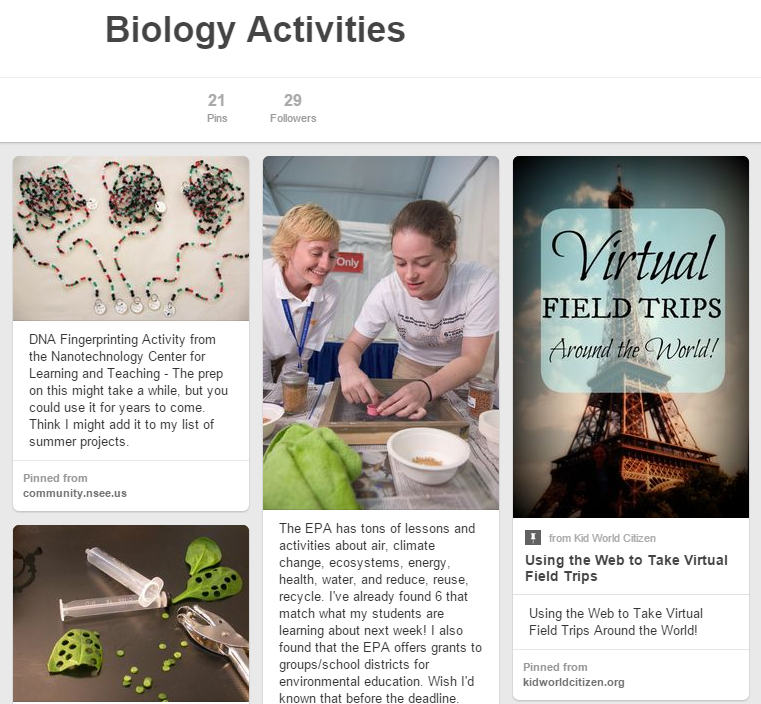
I was surprised to find out how many people use the site for education. It's easy to learn and there are already collections of active learning techniques created by instructors. I make my own "boards" (categories) like the one shown above for Biology Activities, and I use them to organize all of the "someday" stuff I stumble across here and there. Because the pins are visual representations of the ideas, it's easy for me to remember what I liked about the page. As a bonus, Pinterest sends me suggestions from other boards containing related content.
If you want an introduction to the concept of pinning, click on the video for a quick tutorial.
Yes, Pinterest has the potential to be a time sink, but at the end of my web surfing at least I have a useful product. Here are some other educational boards I found to give a taste of what the site has to offer:
ESOL for Adults
College Algebra
Inspiration for Students
For more ideas or to learn how to use Pinterest, visit us in the CTE or email Meg Elias at clarkm1@star.lcc.edu.
When I first heard of "pinning", I thought it was only good for recipes and vacation ideas, and maybe the occasional home improvement project. I was worried that I might end up wasting more time in front of my screen, but so many friends recommended the site that I finally created a free account.
I was surprised to find out how many people use the site for education. It's easy to learn and there are already collections of active learning techniques created by instructors. I make my own "boards" (categories) like the one shown above for Biology Activities, and I use them to organize all of the "someday" stuff I stumble across here and there. Because the pins are visual representations of the ideas, it's easy for me to remember what I liked about the page. As a bonus, Pinterest sends me suggestions from other boards containing related content.
If you want an introduction to the concept of pinning, click on the video for a quick tutorial.
Yes, Pinterest has the potential to be a time sink, but at the end of my web surfing at least I have a useful product. Here are some other educational boards I found to give a taste of what the site has to offer:
ESOL for Adults
College Algebra
Inspiration for Students
For more ideas or to learn how to use Pinterest, visit us in the CTE or email Meg Elias at clarkm1@star.lcc.edu.
Labels:
Change-ups,
Teaching Tip,
Web Tools
Thursday, March 26, 2015
Change-Up your Sign-Ups with Google Sheets
How do you instruct your students or your colleagues to sign up for a project or a potluck?
There are many different online tools to collect data, like Volunteer Spot and Sign-up Genius. The easiest I've found, though, is Google Sheets.
Google Sheets is set up like Excel, and you have free access to it with a Google account. In the example below, I set up dates and times for class field trips, and asked instructors to fill in their destinations. The sheet can be shared with and used by anybody, even if they don't have a Google account.
Google has tons of great FREE trainings on the Google for Education site. LCC instructor Anita Mills completed Google's certification program and is available to discuss more about that process. Anita can be contacted by email at mills87@star.lcc.edu.
For help with Google Sheets or to share your ideas with us, visit the CTE in TLC 324 or email Meg Elias at clarkm1@star.lcc.edu.
There are many different online tools to collect data, like Volunteer Spot and Sign-up Genius. The easiest I've found, though, is Google Sheets.
Google Sheets is set up like Excel, and you have free access to it with a Google account. In the example below, I set up dates and times for class field trips, and asked instructors to fill in their destinations. The sheet can be shared with and used by anybody, even if they don't have a Google account.
Google has tons of great FREE trainings on the Google for Education site. LCC instructor Anita Mills completed Google's certification program and is available to discuss more about that process. Anita can be contacted by email at mills87@star.lcc.edu.
For help with Google Sheets or to share your ideas with us, visit the CTE in TLC 324 or email Meg Elias at clarkm1@star.lcc.edu.
Labels:
Change-ups,
Web Tools
Tuesday, March 17, 2015
What About...RateMyProfessors?
So, what about RateMyProfessors? In case you have never heard of it, this website, the largest in the world, allows students to evaluate over 8,000 schools and 1 million instructors. According to the site, “… a rater must rate the course and/or professor on a 1-5 scale in the following categories: "easiness," "helpfulness," "clarity,” the rater's "interest" in the class prior to taking it, and the degree of "textbook use" in the course. The rater may also share what grade they received in the course, rate the professor on their "hotness," and include comments of up to 350 characters in length max.”
But, really, just how much weight should these evaluations be given? Instructors scratch their heads when they see a low rating on RateMyProfessors and yet, their IDEA feedback reports glowing responses from their students. How can this be?
Critics of the website point toward gender bias in the methodology the site uses to calculate an overall rating for each instructor. Benjamin Schmidt, a professor at Northeastern University, created a searchable database of roughly 14 million reviews from the site. Schmidt found that male professors are far more likely to be considered "smart" or "brilliant" by their students (Huntsberry).
Furthermore, in another study done by researchers at North Carolina State, students taking online courses, who had never met their teachers, gave significantly lower scores to professors with female names. “Students who thought they were being taught by women gave lower evaluation scores than students who thought they were being taught by men. It didn’t matter who was actually teaching them … the instructor students thought was male, received a 4.35 rating out of 5. The instructor students thought was female, received a 3.55 rating …” (MacNell and Shipman).
So where does this leave us? Well, know that students can leave multiple comments, making it appear that many students are saying the same thing about you. By logging onto different computers and using different email addresses, students who may have it “out for you” could be sabotaging your rating. Since most of the rating categories revolve around the ease of a course and how easy it is to get an A from the instructor, take heart if your ratings are a bit low. Challenging students is not a bad thing. What counts is your desire to work with students and deliver quality every time you step into the classroom!
For more information, see us in the CTE or email Carole Kendy at kendyc@star.lcc.edu.
Huntsberry, William. “How We Talk About Our Teachers.” NPR. 23 Feb 2015. Radio.
MacNell, Lillian and Matt Shipman. “Online Students Give Instructors Higher Marks If They Think Instructors Are Men.” NC State News. 9 Dec 2014.
But, really, just how much weight should these evaluations be given? Instructors scratch their heads when they see a low rating on RateMyProfessors and yet, their IDEA feedback reports glowing responses from their students. How can this be?
Critics of the website point toward gender bias in the methodology the site uses to calculate an overall rating for each instructor. Benjamin Schmidt, a professor at Northeastern University, created a searchable database of roughly 14 million reviews from the site. Schmidt found that male professors are far more likely to be considered "smart" or "brilliant" by their students (Huntsberry).
Furthermore, in another study done by researchers at North Carolina State, students taking online courses, who had never met their teachers, gave significantly lower scores to professors with female names. “Students who thought they were being taught by women gave lower evaluation scores than students who thought they were being taught by men. It didn’t matter who was actually teaching them … the instructor students thought was male, received a 4.35 rating out of 5. The instructor students thought was female, received a 3.55 rating …” (MacNell and Shipman).
So where does this leave us? Well, know that students can leave multiple comments, making it appear that many students are saying the same thing about you. By logging onto different computers and using different email addresses, students who may have it “out for you” could be sabotaging your rating. Since most of the rating categories revolve around the ease of a course and how easy it is to get an A from the instructor, take heart if your ratings are a bit low. Challenging students is not a bad thing. What counts is your desire to work with students and deliver quality every time you step into the classroom!
For more information, see us in the CTE or email Carole Kendy at kendyc@star.lcc.edu.
Huntsberry, William. “How We Talk About Our Teachers.” NPR. 23 Feb 2015. Radio.
MacNell, Lillian and Matt Shipman. “Online Students Give Instructors Higher Marks If They Think Instructors Are Men.” NC State News. 9 Dec 2014.
Labels:
Web Tools,
What about...
Change-Up Your Lesson Introduction with "Today in History"
How do you start off your time in the classroom? Those first few minutes can be problematic, with students shuffling papers, taking off coats, finding pens, starting up laptops, checking email and social media. Some instructors get into the habit of repeating an opening phrase such as "Okay, I'm going to get started now," while others jump right into content leaving the slower students behind. Another option is to ease into the lesson with a piece of relevant news or historical trivia. Check out the website TODAY IN HISTORY for a daily rundown of political events, science milestones and famous birthdays. Using August 22 as an example, I found that the Mona Lisa was stolen, Ray Bradbury was born, and Brazil entered World War II. For lighthearted content, go to THE NATIONAL DAY CALENDAR to find that August 22 is National Tooth Fairy Day and National Pecan Torte Day! Yes, really.
For more ideas on how to ease into lectures or to share your ideas with us, visit us in the CTE or email Meg Elias at clarkm1@star.lcc.edu.
Labels:
Change-ups,
Teaching Tip,
Web Tools
Thursday, March 5, 2015
Change-up your Communication Using Remind
Remind is a free online program or smart phone app that allows students to receive texts from you without revealing any personal information. You set up an account and a "class," then invite students to join by sending a text to a specific number. You can then send out messages or schedule them to be sent at a later date or time.
Student reaction has been positive, with about half of my students opting to sign up. I send just one or two texts per week, and students can drop the service at any time.
For more information, visit us in the CTE or email Meg Elias at clarkm1@star.lcc.edu.
Sign up for a FREE Remind Account
Labels:
Change-ups,
Web Tools
Friday, February 13, 2015
Lynda Trials Available
LCC has purchased 5 Lynda Pro licenses which are good until December 2015. We are currently offering access to all faculty for two-week trial periods to the Lynda training materials. While much of the Lynda library is devoted to the digital graphic arts and programming, Lynda also offers an extensive section devoted to teaching and learning. Below is a short list of educational topics and the number of courses related to that topic.
If you would like to “try out” Lynda, email your request to John Thommen in the CTE thommej@lcc.edu and include your TUID and department.
| Teacher Tools | 71 |
| Elearning | 51 |
| Higher Education | 36 |
| Educational Technology | 34 |
| Teacher Professional Development | 24 |
| Instructional Design | 22 |
| LMS | 12 |
| Classroom Management | 9 |
Labels:
Web Tools
Change-up your Course Intro with Animoto
In an online environment, it can be difficult and time consuming to design content that grabs a student's attention on day one. Animoto is a web tool that presents educators with an easy-to-use set of templates for creating short videos to use in the online classroom. They embed easily into Desire2Learn, and educators can apply for a free account to increase their maximum video length from thirty seconds to three minutes.
Here is a video that I created to introduce students to BIOL 120.
On March 18, the CTE is offering a workshop to help you get started using Animoto. See the CTE Workshop Calendar for more details, or contact Meg Elias at clarkm1@star.lcc.edu.
Apply for a FREE Animoto Educator's Account
Labels:
Change-ups,
Web Tools
Subscribe to:
Posts (Atom)