Recently while driving around town I heard on the radio an interview with the classicist Mary Beard. In the interview she talked about her now 10-year-old blog, A Don’s Life. It sounded interesting, so I checked it out.
Turns out that Beard writes on all kinds of subjects in A Don’s Life, not only or even primarily on ancient Western topics. She tackles the Cecil Rhodes controversy at Oxford, for instance, how we handle disagreement today, her vacation to Iceland, and more, ten years more. Some of it I liked!
The more I browsed, the more it came home to me how important it is that academics remain interested in the world beyond our limited disciplines. It may even be that our intellectual peregrinations are crucial to our continued disciplinary relevance.
This is part of Pamela Reese’s underlying point in “The Classic Movies Come to Class” in the January edition of The Teaching Professor. Reese wants all of us, in every discipline, to work ‘classic’ movies into our curriculum. By experiencing such films, according to Reese, students “can have thrilling revelations that bridge directly to what they are studying.” By a slight change of focus and medium, the desired learning objective can be attained. Reese provides a nice list of films to consider, too!
By reminding us that our disciplines exist in broader contexts and relations, Beard and Reese encourage us to bring all of our intellectual interests and creativity to bear on our teaching.
The Teaching Professor includes summarized articles from various educational publications, as well as original articles from university and college instructors. If you are interested in viewing articles in this and/or other publications, contact Tim Deines at deinest@star.lcc.edu or stop by the CTE, TLC 324.

Thursday, February 18, 2016
Wednesday, February 17, 2016
Gamify Your Content with BINGO!

In cases where students need to master new terminology for an exam, I create custom Bingo cards at Print-Bingo.com. With 24 terms (plus the FREE center square), Print-Bingo will generate 10 unique cards in a downloadable .pdf file. For a large class, I either generate multiple sets or just print several copies of one set ... I'm okay with multiple winners. Students choose a card and they have 5 minutes to look over the terms and ask questions.

For the students who struggle to match definitions to the terms, the game is a wake-up call. For me, it helps identify students who might need some extra help or even a referral to the Learning Commons. Yes, there's an element of chance involved in winning (which card you pick), but the risk and the reward are so small that students don't complain.
If you'd like to talk more about using games for test review, visit the CTE or contact Meg Elias at clarkm1@star.lcc.edu.

Thursday, February 11, 2016
Teaching Tip - Video Feedback for Students
For the last few semesters, I have required my Composition II students to complete a public writing project. Since their final work is published on the web, I couldn’t provide them with the type of feedback that I normally do using Microsoft Word: in-text comments throughout their essay and some narrative comments at the end.
Since I still want to point out specific features within the text as well as provide some summary comments, I use Video Feedback—and I actually receive positive reviews from the students about the videos. The process is relatively quick and easy (once I got the hang of the technology), and it can be used by any instructor who wants to provide some personalized feedback on their students’ work. It doesn’t just have to be a writing assignment; it would work well for any type of digital submission required of students.
Using Screen Capture, I use the mouse to indicate specific areas within the essay I want to discuss with my students. I simply move my cursor arrow around the general area, or highlight specific parts of the text while I tell the student what I want to say about his/her work. Then, I am able to move my cursor to the next section I wish to discuss.
To create Video Feedback, you will need a computer equipped with a microphone and a simple Screen Capture program. I used Jing, a program available for FREE download. Now, Kaltura, an easy Screen Capture program, is already available within Desire2Learn (D2L). The advantage of Kaltura is that the video files are easily saved within the “My Media” area within D2L, which makes sharing those videos with students even simpler. As for a microphone, I recommend one of the external headset microphones; they make for much better sound quality.
Try these basic steps for giving Video Feedback:

If you would like assistance getting started on providing Video Feedback to your students, email Leslie Johnson at farrisl@star.lcc.edu or stop by the CTE in TLC 324 during our open hours.
Since I still want to point out specific features within the text as well as provide some summary comments, I use Video Feedback—and I actually receive positive reviews from the students about the videos. The process is relatively quick and easy (once I got the hang of the technology), and it can be used by any instructor who wants to provide some personalized feedback on their students’ work. It doesn’t just have to be a writing assignment; it would work well for any type of digital submission required of students.
Using Screen Capture, I use the mouse to indicate specific areas within the essay I want to discuss with my students. I simply move my cursor arrow around the general area, or highlight specific parts of the text while I tell the student what I want to say about his/her work. Then, I am able to move my cursor to the next section I wish to discuss.
To create Video Feedback, you will need a computer equipped with a microphone and a simple Screen Capture program. I used Jing, a program available for FREE download. Now, Kaltura, an easy Screen Capture program, is already available within Desire2Learn (D2L). The advantage of Kaltura is that the video files are easily saved within the “My Media” area within D2L, which makes sharing those videos with students even simpler. As for a microphone, I recommend one of the external headset microphones; they make for much better sound quality.
Try these basic steps for giving Video Feedback:
- Read and review student’s work first, taking notes on what you wish to say. Organize your thoughts a bit before you begin recording.
- Call up the student’s work on your computer screen, then open Jing or Kaltura whichever you prefer. Set the screen capture area to record just the student’s work, not your entire computer screen.
- Begin recording, making sure to talk slowly and clearly. Begin with some overall thoughts, especially something positive. Then spend time pointing out interesting ideas or possible areas for improvement.
- If you need to discuss grammar/mechanics errors that overwhelm a student’s writing, do so in a general statement about the problem. Don’t try to point out each and every error; instead, choose one or two examples that are indicative of the patterns you are observing.
- Keep the videos under five minutes.
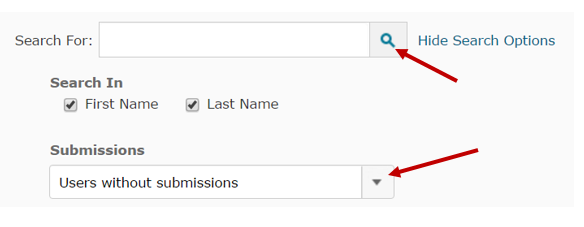
- Upload the videos to each student using a D2L dropbox. If the students did not submit the work to a dropbox, create one in D2L anyway. In the Folder Submissions view, select Users without submissions then click on the search icon; you will then be able to see all of the students, enter their grades, and upload the Video Feedback for each one.
If you would like assistance getting started on providing Video Feedback to your students, email Leslie Johnson at farrisl@star.lcc.edu or stop by the CTE in TLC 324 during our open hours.
Wednesday, February 3, 2016
T5 - Excel Shortcuts

The first copies the contents of the cell above into the current cell. This action is activated by pressing the
For more information, visit us in the CTE or email John Thommen at thommej@lcc.edu.
Thursday, January 28, 2016
Tech Tip - Windows Snipping Tool
I use a lot of screen shots in emails to students, especially when I’m explaining how to use a piece of technology. Microsoft Windows has a very easy way to capture all or a portion of your visible screen and copy it to an email or save it to your hard drive.
The Windows Snipping Tool is found under the Accessories Tab in the Start Menu. When you open the Tool, you can choose how much (and what shape) to snip. This is an advantage over the windows Print Screen (prt sc) button, which requires you to crop the image if you want anything less than the full screen.

The following video gives a useful set of instructions for finding and using the Snipping Tool in Windows 7.
If you have another version of Windows, or you want to learn more tech tips, contact Meg Elias at clarkm1@star.lcc.edu or visit the CTE.
The Windows Snipping Tool is found under the Accessories Tab in the Start Menu. When you open the Tool, you can choose how much (and what shape) to snip. This is an advantage over the windows Print Screen (prt sc) button, which requires you to crop the image if you want anything less than the full screen.

The following video gives a useful set of instructions for finding and using the Snipping Tool in Windows 7.
If you have another version of Windows, or you want to learn more tech tips, contact Meg Elias at clarkm1@star.lcc.edu or visit the CTE.
Wednesday, January 20, 2016
Coddling Students...Continuing the Discussion

In my early years teaching at LCC, I had overly strict polices with no room for negotiation, and the language in my syllabus was harsh and condescending. There were lots of capital letters and bold fonts, with phrases like, “IN CASE YOU WERE THINKING OF COMING IN LATE...JUST STAY HOME!” One semester I stuck to my “locked door” policy during lecture, and continued the lesson even as an irate student pounded on the door and shouted at me from the hallway.
My teaching philosophy had the underlying premise that students who were not ready for college would learn by failing. I would not remind them about assignments or exam dates (it’s on the syllabus), because keeping an up-to-date personal calendar is a skill they should have been taught in high school. If a student forgot to attend an exam, I recorded a zero and moved on.
I can’t remember exactly when my attitude shifted, but somewhere along the way I quit blaming students for being unprepared for higher education. My current policies are not lenient, really, but I dropped the confrontational tone (and the bold type), and started teaching the skills that students were lacking. At the beginning of every face-to-face class, for example, I write an agenda on the board, and I keep an up-to-date calendar in Desire2Learn. Sometimes I even send out an email reminder before a high-stakes assignment is due. There is no such thing as, “I didn’t know the test was Thursday.”
Because there are clear expectations, I don’t accept any late work. But I still wonder whether reminding students of upcoming due dates is “helicopter teaching.” Maybe I need to move my students toward independence by showing them how to use Google Calendar, and decreasing the number of reminders as the semester progresses.
Even if I do too much, I’d rather create an atmosphere of empathy and patience than one of hostility. I will never again lock a student out of my classroom, or shout at them in my section syllabus. I will set reasonable expectations, and teach the students how to achieve them.
If you'd like to talk more about classroom management, visit the CTE or contact Meg Elias at clarkm1@star.lcc.edu.
Monday, December 7, 2015
Teaching Tip - Closing the Semester

Day eighty is a whole different story, isn’t it? When you and the students are tired and filled with stress, it’s tempting to end the semester with a whimper instead of a bang. But when students walk out on the last day, they’ll take a final impression with them, maybe just as strong and important as the first. By the sixteenth week, you’ve spent many hours together and formed a community. Take a minute to say goodbye in a meaningful way.
Before handing out that last exam, you might recap the high points of the semester, or give a summary of what you’ve learned while teaching the class. Maybe read a quote that evokes a certain emotion about the content, or something inspirational that will help them get through a week of difficult exams and final projects.
During my final class, when my students hand in their tests, I say goodbye to each of them by name and say something personal about our shared experience. In that gesture, I set aside grades and missed due dates, and acknowledge that the semester was meaningful to me. I try to take those last moments to end the semester thoughtfully and with purpose.
For more ideas about ending the semester on a high note, see the Teaching Tip, “Bringing Closure” on the CTE website.
Subscribe to:
Posts (Atom)